Bank messages on iPhone
iPhone apps can’t read your text messages. Instead, a Shortcuts automation on your iPhone hands Gerry the texts you choose — your bank’s or your wallet’s — as they arrive. Gerry turns each one into an entry for you to check. You set it up once, and it takes about two minutes.
What it does, and what it doesn’t
- Gerry only sees the messages your automation passes on. It never reads your other texts.
- On your iPhone, Gerry drops codes, adverts and anything that isn’t a payment, and removes account and card numbers (all but the last four digits) and your balance.
- What is left goes to Gerry’s parser, which works out the amount, the shop or person, and the date. The text isn’t kept.
- Every entry from a bank message is marked needs review, so nothing counts as checked until you’ve looked at it. You can edit or delete it like any other.
- Each entry goes under the account for the card or account it was paid from, such as CIB 4821. Gerry makes that account the first time it sees the card.
First, in Gerry
Open Gerry, go to You (Settings) and turn on Auto-add bank SMS. While it’s off, Gerry ignores anything the automation sends.
Set up the automation
On iOS 27 or later (the pictures are from iOS 27.2):
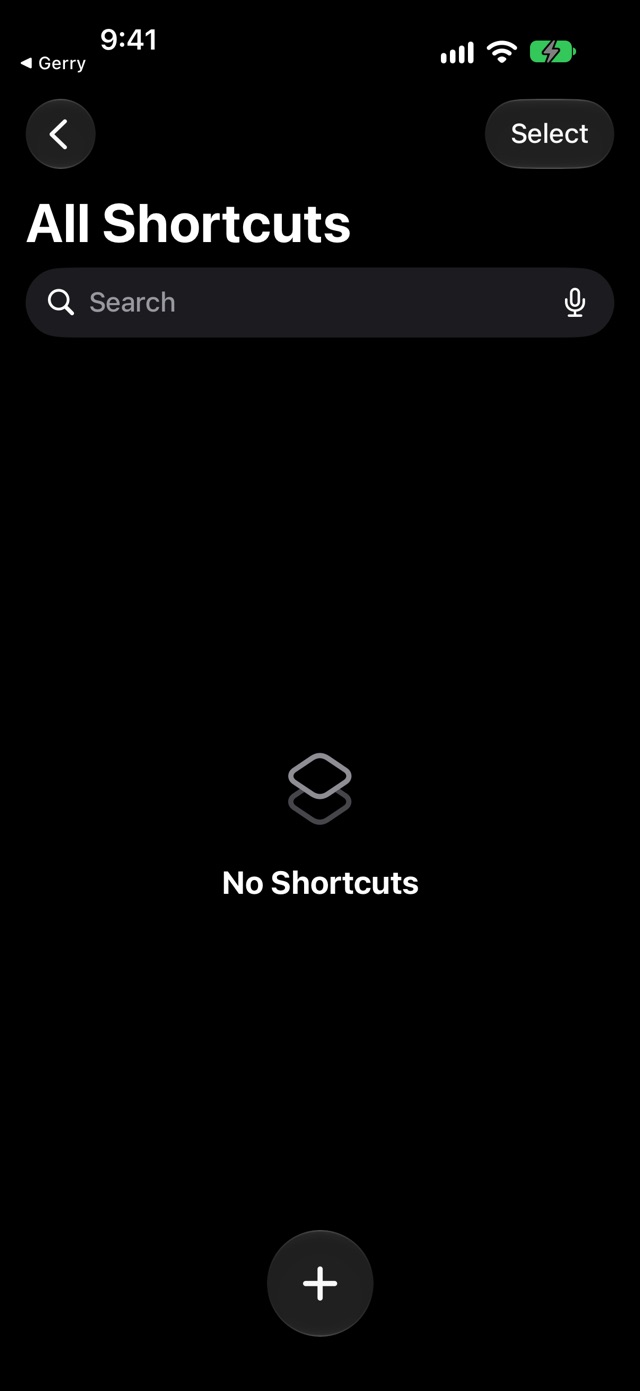
Open Shortcuts and tap + at the bottom. If it offers to describe a shortcut, tap Edit at the top.
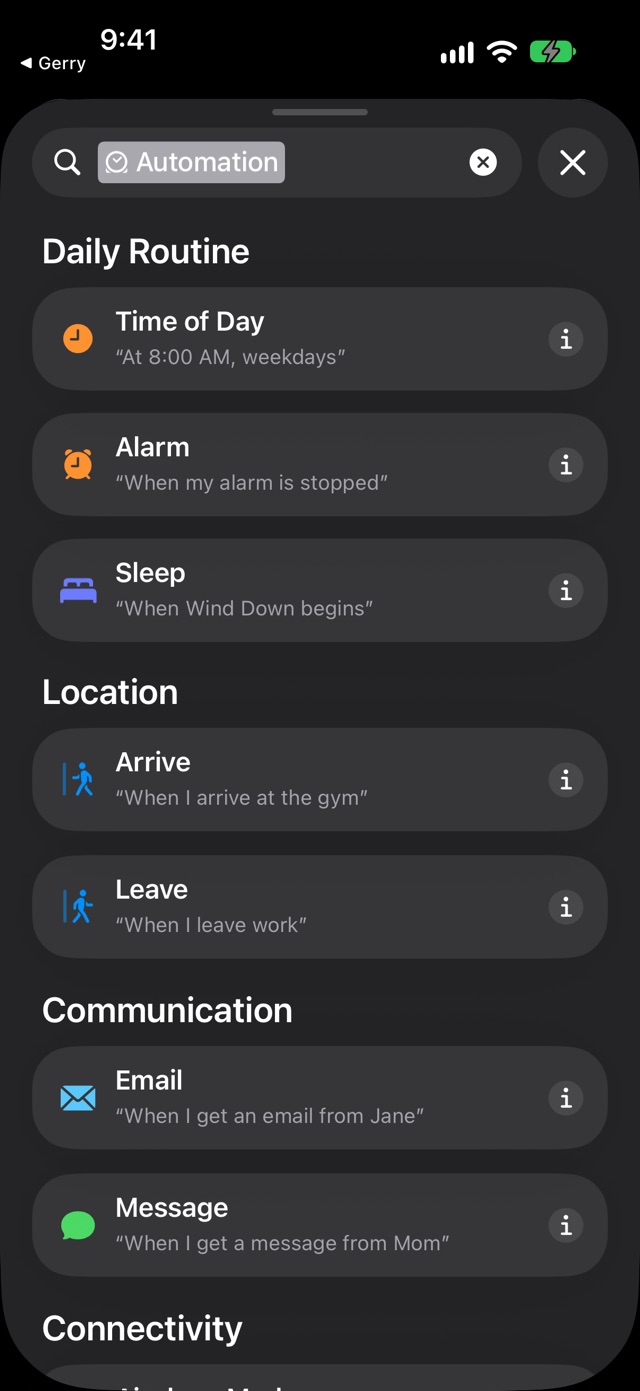
In the list of actions, tap Automation, then choose Message. It’s a trigger, so it isn’t among the Messages app’s actions.
Next to Sender is, tap the faded Sender. Type your bank’s sender name, such as
CIB, then a comma so the name turns blue, and tap the check mark. If your iPhone asks about contacts, choose Select Contacts, then Select Contacts Later; Gerry doesn’t need them.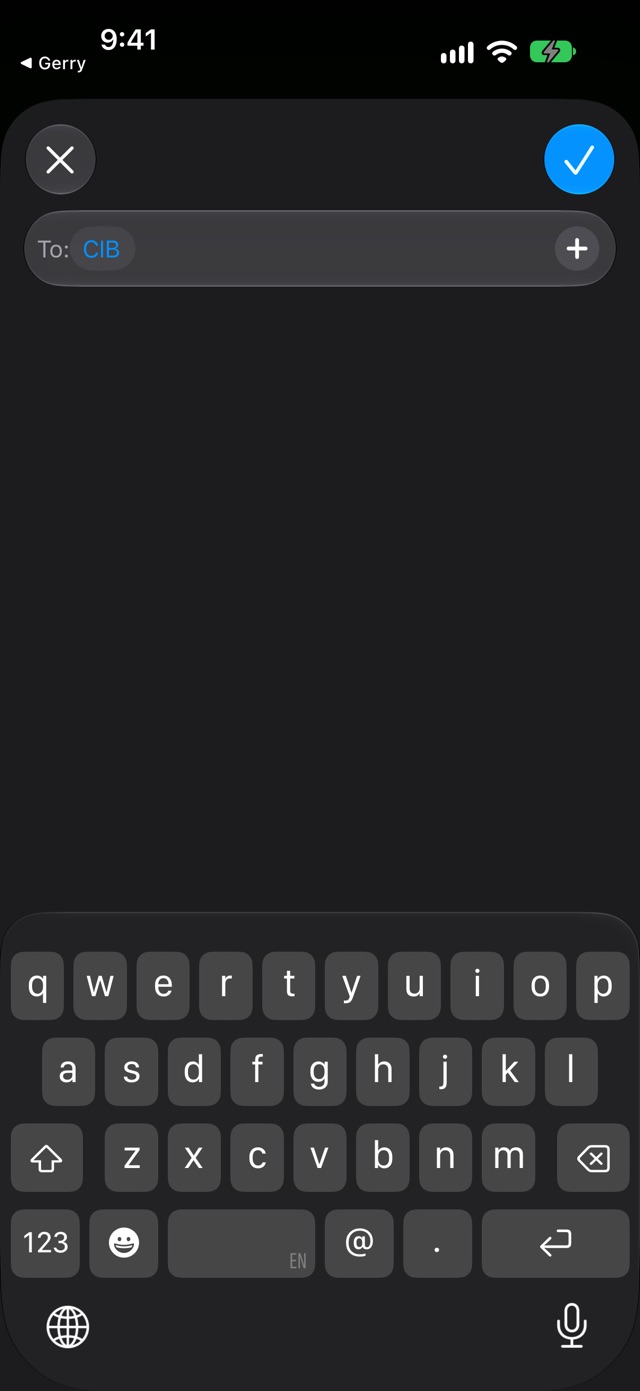
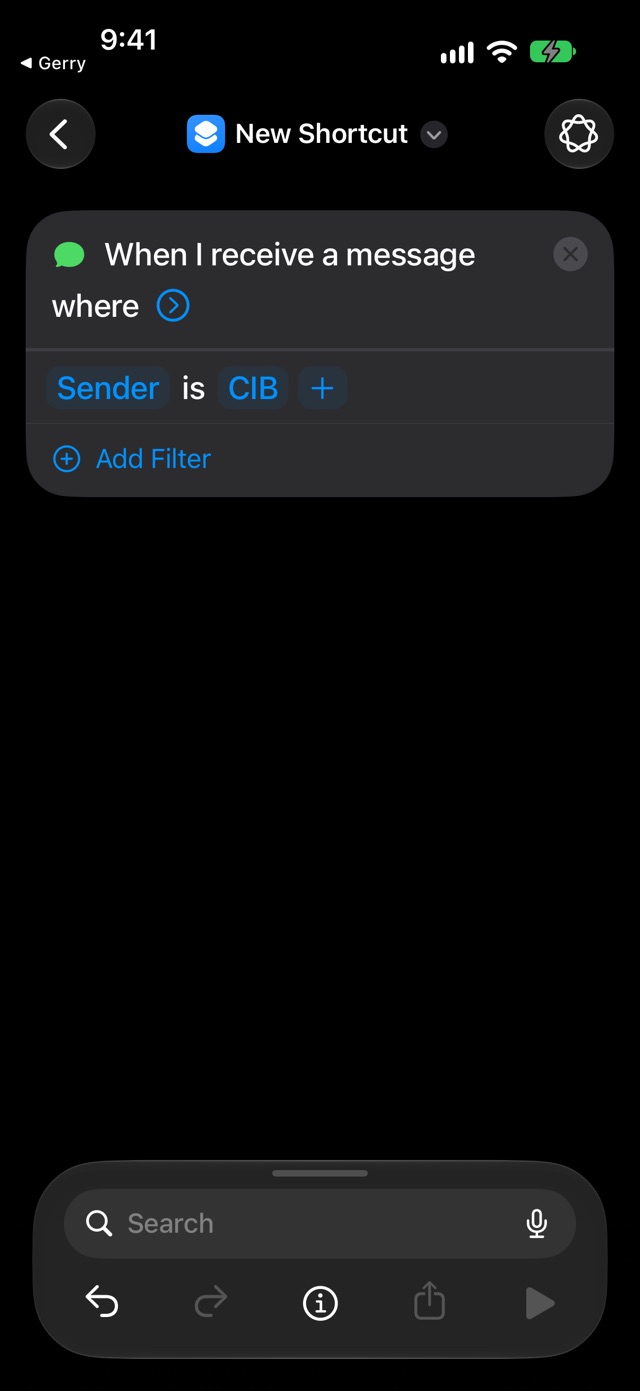
Your bank now shows after Sender is, as in the picture. For another bank, tap the + next to the name.
Tap the search box at the bottom, type “bank message” and tap Add bank message to Gerry.
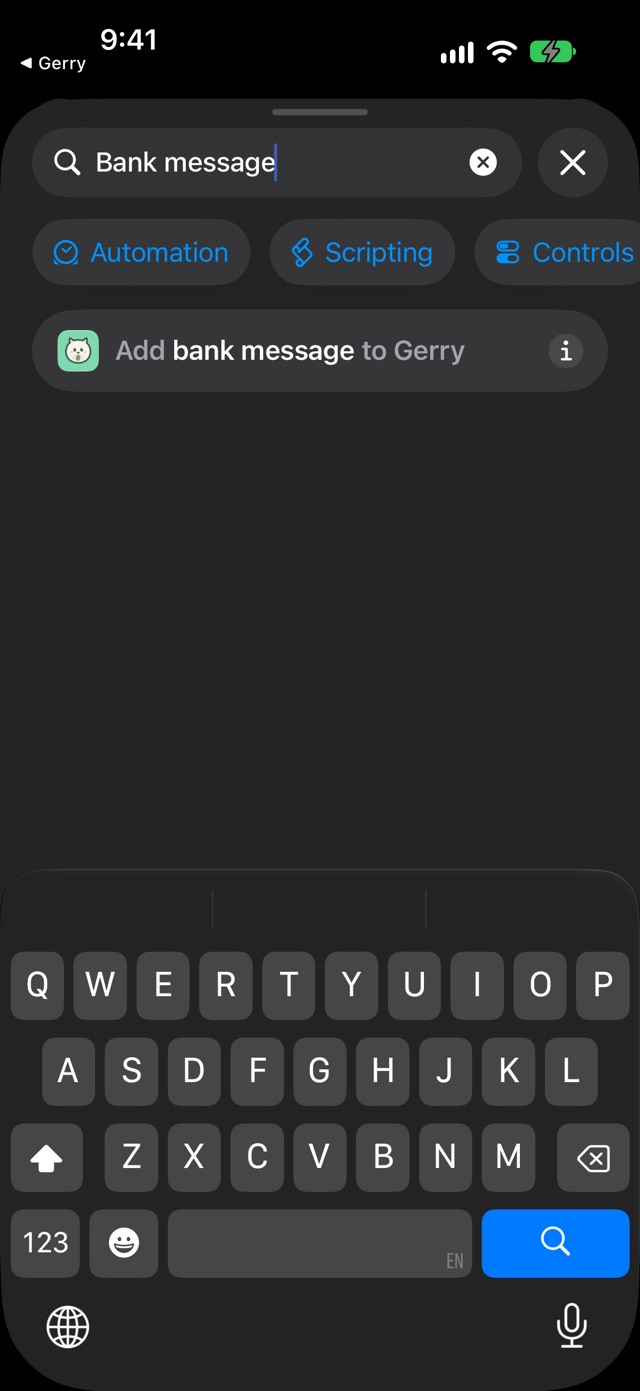
Tap that action’s Message field, then Select Variable, then the blue Message under the trigger.
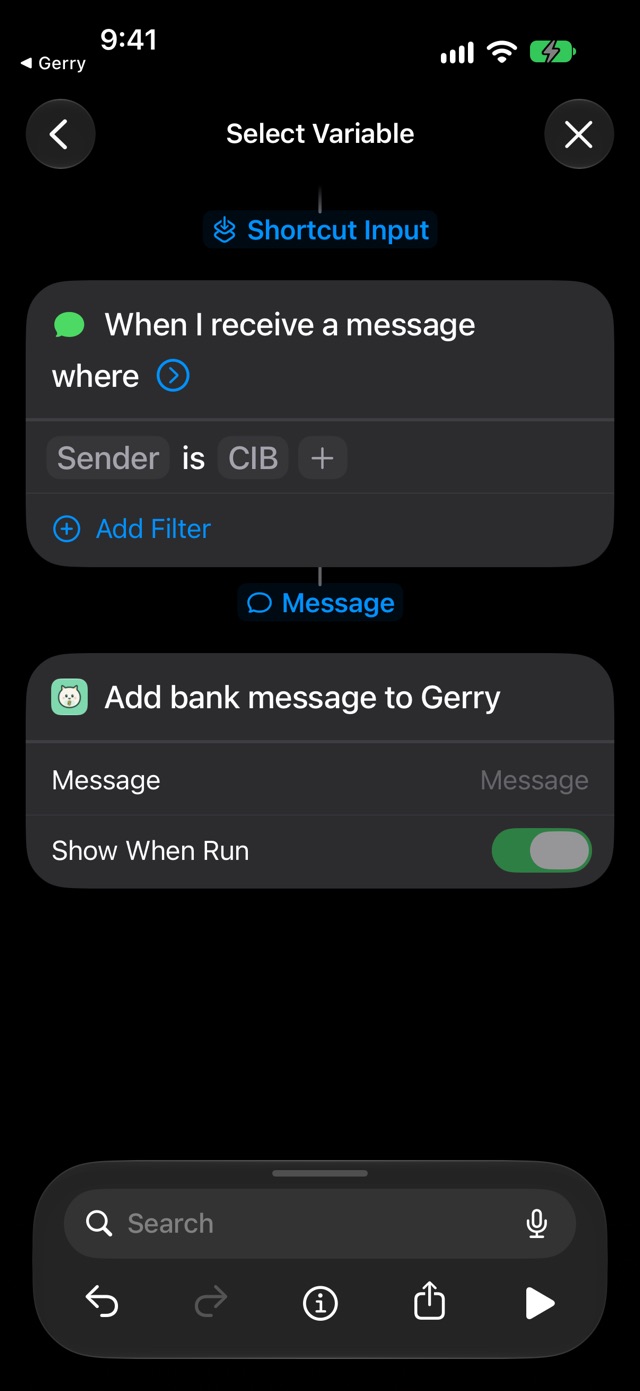
On the same action, tap Sender (tap Show More if you don’t see it), then Select Variable, then the blue Sender under the trigger. Gerry uses it to put each payment under its card, such as CIB 4821.
Turn off Show When Run, so nothing pops up when a text comes in.
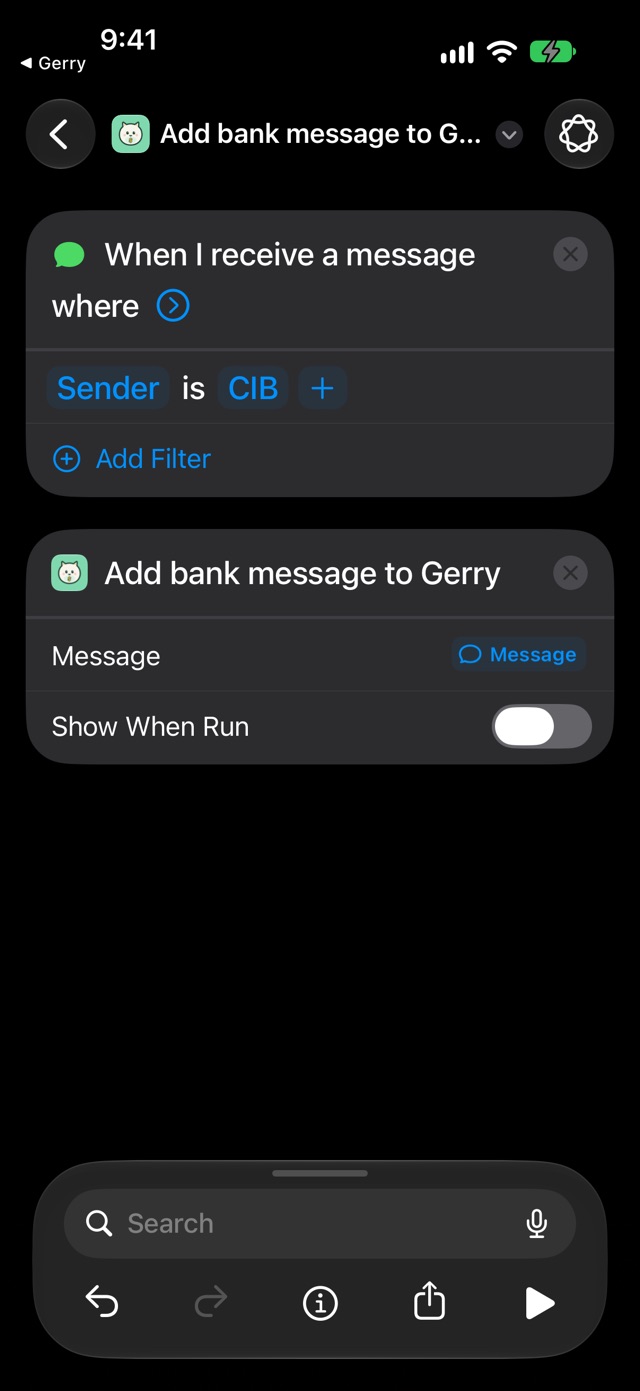
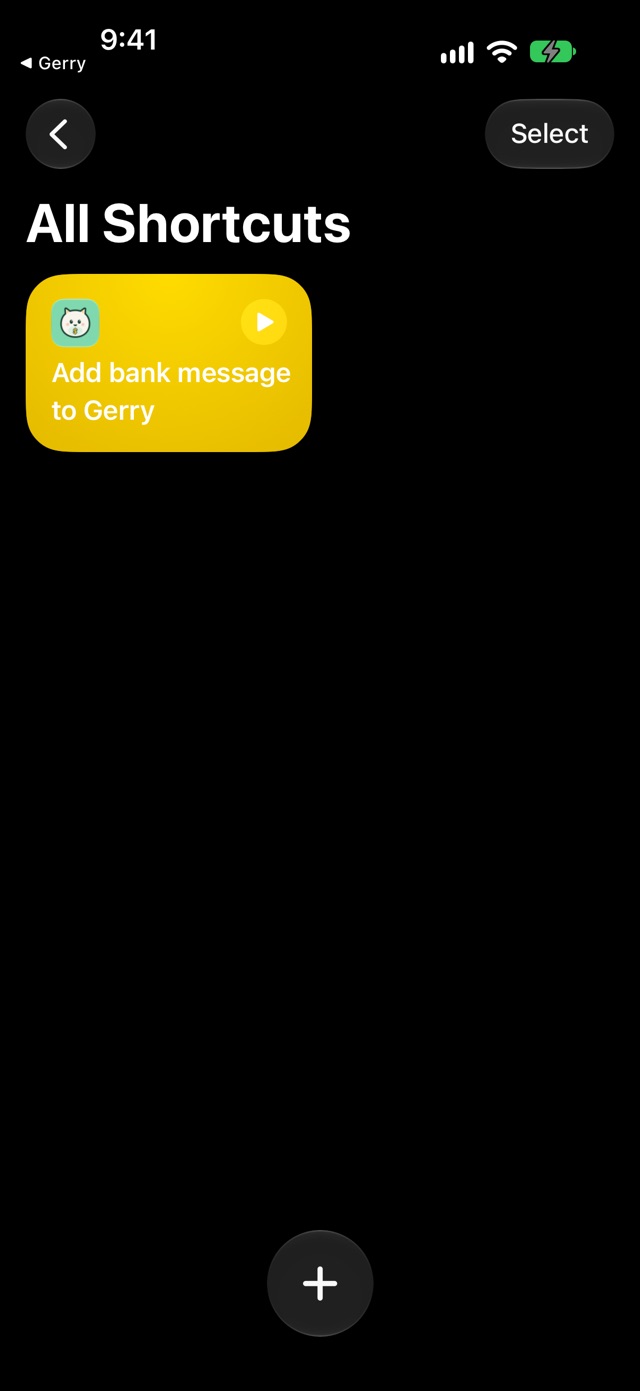
Tap the back arrow to save. The shortcut joins your other shortcuts, and runs on its own from now on.
On iOS 17 to 26
Open Shortcuts and go to the Automation tab. Tap New Automation (or + if you already have one), then choose Message.
Sender: tap it and type or pick your bank’s sender name, such as
CIB. For more than one bank, set up one automation for each.Choose Run Immediately, so it runs without asking each time. If your iPhone shows Notify When Run, turn it off. Then tap Next.
Tap Create New Shortcut (on iOS 17, New Blank Automation). Search the actions for “bank message” and tap Add bank message to Gerry.
Tap the Message field, choose Select Variable, then Shortcut Input. Turn off Show When Run, so nothing pops up when a text comes in.
Tap Sender on the action (under Show More if it’s hidden), choose Select Variable, then Shortcut Input, and tap it to pick Sender. Gerry uses it to put each payment under its card.
Tap the check mark to save. The automation is listed under Personal, and runs on its own from now on.
If something isn’t right
- The automation doesn’t run. Check that Automation is on and Confirm Before Run is off (on iOS 26 or earlier, Run Immediately), and that you have opened Gerry at least once since installing it.
- Nothing is added. Auto-add bank SMS may be off in Gerry, or the sender name in the shortcut doesn’t exactly match the one your bank texts from.
- The same payment shows up twice. Some banks send one text for the card and another for the account. Gerry spots most of these; delete the extra entry if one gets through.
- Turning it off. Delete the automation in Shortcuts, or turn off Auto-add bank SMS in Gerry. Either stops it straight away.
Privacy
How Gerry handles bank messages, and what it never does with them, is in the privacy policy.